How to Choose a QR Menu System: 12-Point Checklist
Every QR menu looks fine in a demo. These 12 checks show which one will still work for you on a busy Saturday night – from loading speed and languages to QR codes that actually scan.
Every QR menu looks good in a sales demo. The difference shows up later: on a full terrace, on a slow phone, when you need to change a price ten minutes before service. This checklist helps you choose a QR menu system for your restaurant, café or bar by testing what matters in daily use – not what looks best on a slide.
For your guests
1. No app to install
The menu must open straight in the phone's browser after scanning. Every extra step – an app, a sign-up, a pop-up – loses guests before they see a single dish.
2. Fast on a real phone
Test it yourself: scan the demo on mobile data, at a table, with an average phone. A digital menu that takes several seconds to show the first dish feels broken to a hungry guest. Light pages and compressed photos matter more than animations.
3. Their language, automatically
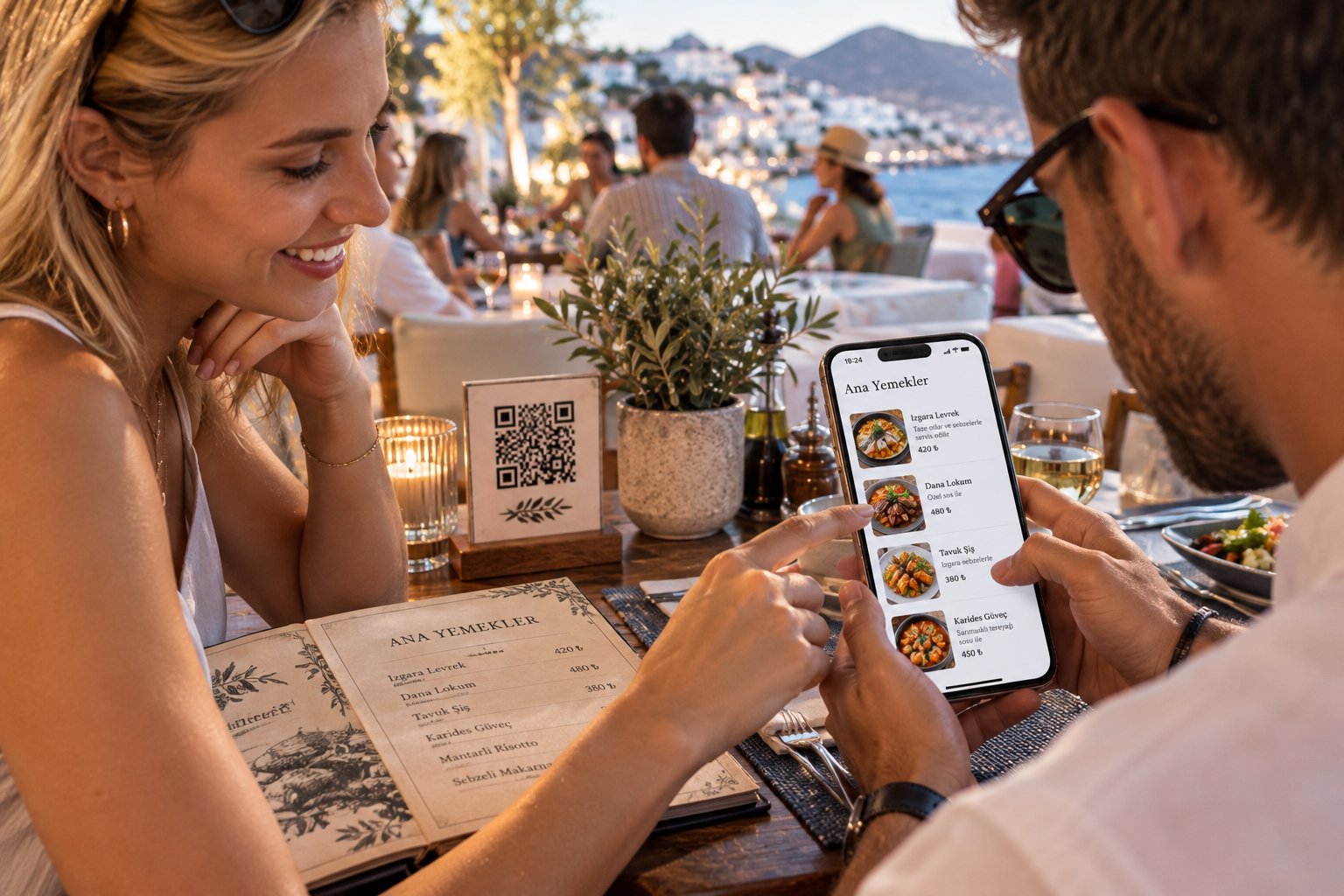
The menu should open in the language of the guest's phone and offer a simple switcher. Check how many languages are available, whether translation is done for you, and whether right-to-left scripts such as Arabic display correctly. Our guide to translating a menu for foreign guests covers the details.
4. Allergens and dietary tags
Guests should see allergens and tags like vegetarian or vegan on each dish, in their own language. This is a question of safety, not decoration.
For you and your team
5. Editing that takes seconds
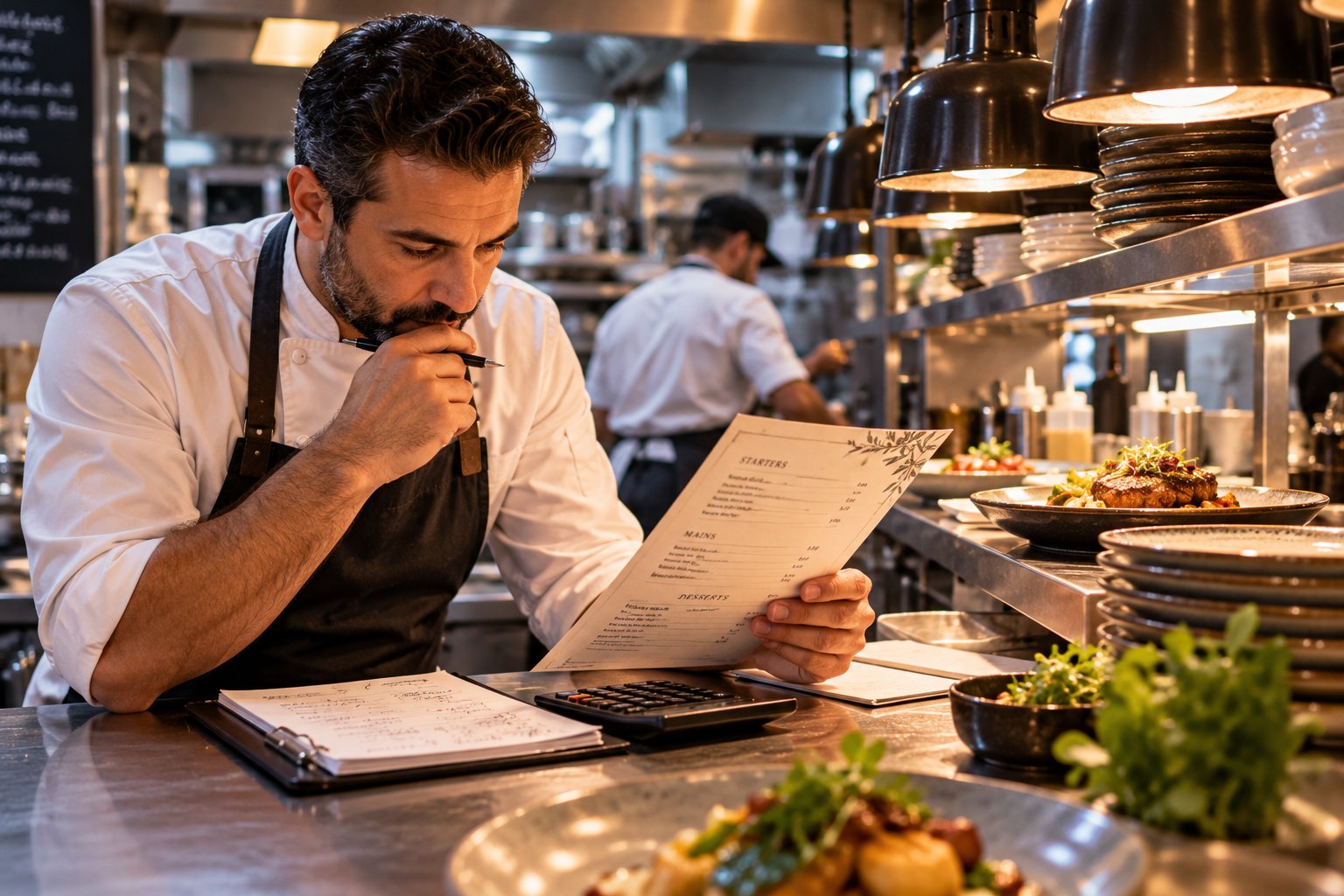
Change a price, hide a sold-out dish, add a daily special – from your phone, without calling anyone. If an edit needs support, the system will slow you down every week.
6. A design that looks like your restaurant
Your menu is part of your brand. Look for several real designs, your own colours, logo and cover photo – not one generic template with your name on top.
7. Photos and descriptions that are easy to add
Good dish photos and one-line descriptions sell. Check how easy it is to upload them and whether the system helps you write descriptions or import an existing menu instead of typing it all in.
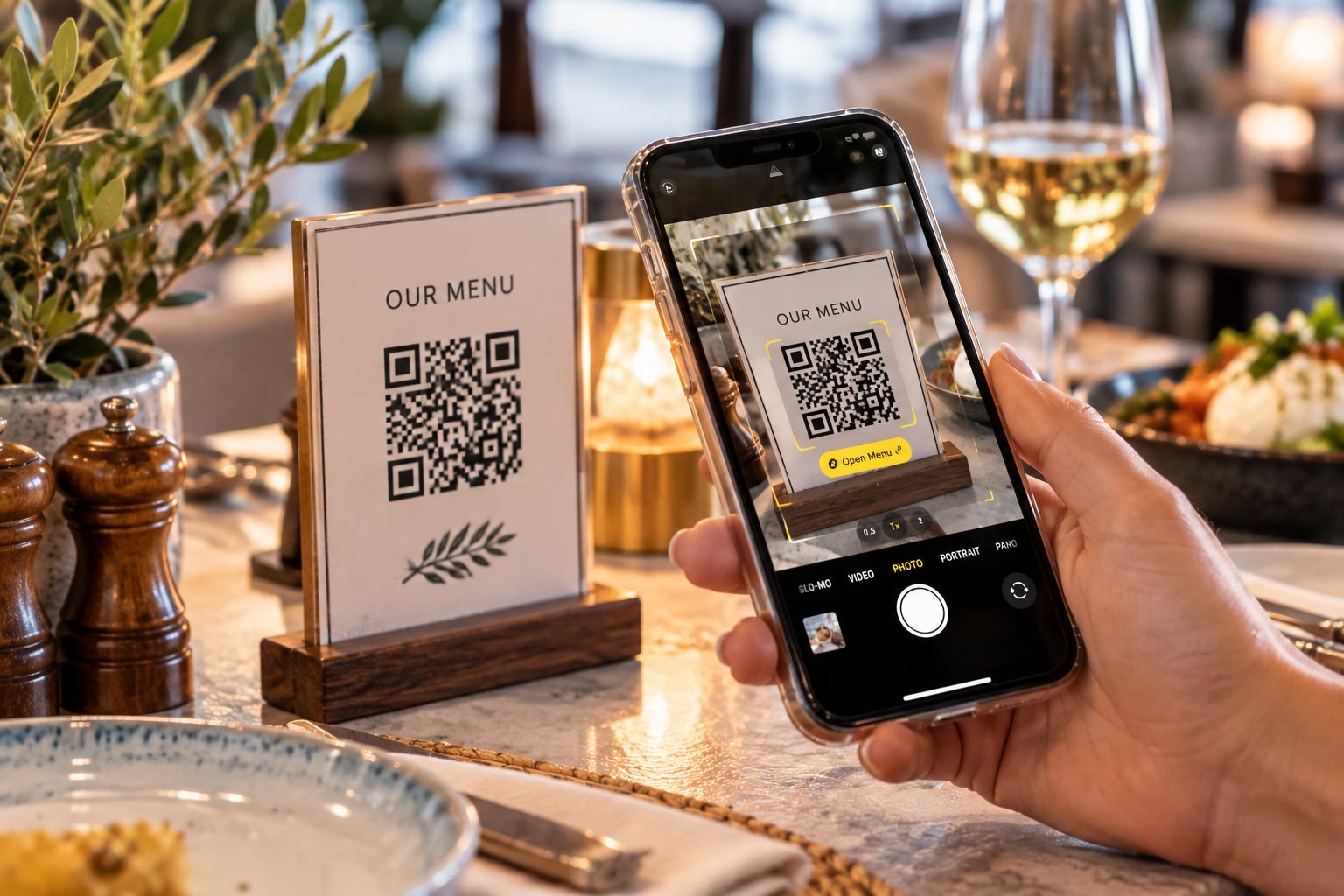
8. QR codes that actually scan
This is where many menus fail in real life. Before you print a hundred codes:
- print the code large enough to scan from the guest's seat – a few centimetres wide is a sensible minimum for table stands;
- keep strong contrast – dark code on a light background – and leave a clear margin around it;
- use one code per table if you want waiter calls or orders to show the table number;
- test the printed result with several different phones before printing the full batch.
For your business
9. Service from the table
A waiter-call button, a bill request and ordering from the table can save your team many trips. You may not need them on day one – but check that you can switch them on later without changing provider.
10. Numbers you can use
Which dishes are viewed most? At what times? In which languages? Simple analytics turn your menu into a source of decisions about pricing, photos and staffing.
11. Honest pricing and a real trial
You should be able to build your real menu before paying, see clearly what each plan includes and know that your QR codes keep working when you change plan. Our breakdown of what a QR menu costs lists the questions to ask.
12. Support and payment that fit your country
Can you pay in a way that suits your business and receive proper invoices? Will someone answer in your language when something goes wrong on a Friday evening?
Test any system in 15 minutes
- Scan the live demo with your own phone, on mobile data.
- Switch your phone to another language and scan again.
- Change a price in the editor and watch how fast it appears on the menu.
- Print one QR code at the size you plan to use and scan it from a chair.
A system that passes these four tests will usually pass the rest.
How YR Menu fits the checklist
YR Menu opens in the browser with no app, shows your menu in up to 13 languages with automatic detection, and lets you choose from 21 designs with your own colours and logo. You edit prices and dishes from your phone, mark allergens and dietary tags, and can import a printed menu from a photo with AI. QR codes come as print-ready files, and waiter calls, bill requests and table ordering are available when you need them. Explore all features, read our step-by-step guide to creating a QR menu, or start free for 14 days – no card needed.
Updated: